
Black Friday Sale · 70% off any plan Black Friday 70% OFF Claim Offer
Trusted by 15,000+ traders · 5+ years on TradingView

New To Trading? Spot Trends. See Entry And Exit Prices.

Use our TradingView indicators to spot trends, mark trade prices, and scan markets. A step-by-step setup guide and member support help you get started.

TradingView tools · Setup guide · Member support
15,000+Active members
MappedEntry, stop & targets
100+Features
1 minSetup time
Inside the System

Check Price, Trend, And Trading Activity

Entry And Exit Levels

See Where You Could Enter And Exit

Not sure when to get in or out? Our indicators mark possible entry prices, stops, and targets so you can review a trade before you act.
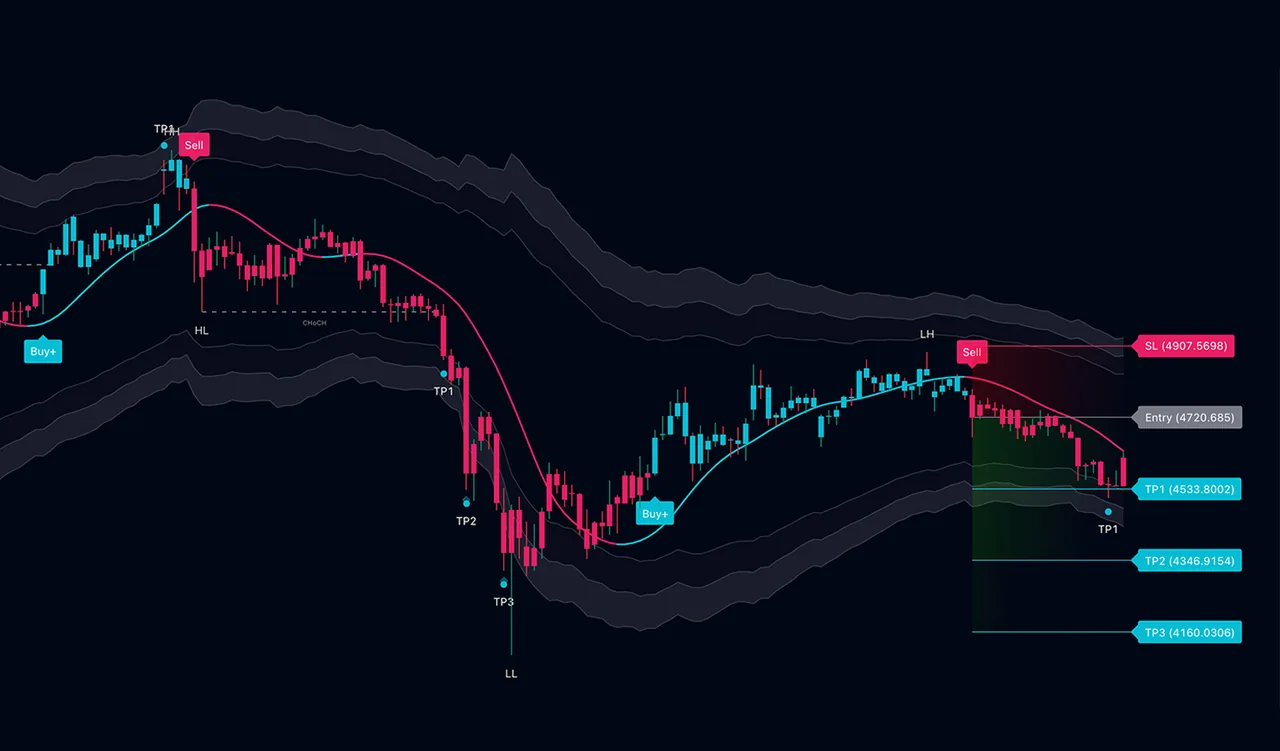
  • Entry: where you could start
  • Stop: where you plan to cut a loss
  • Targets: where you could take profit
Get My Entry & Exit Tools →
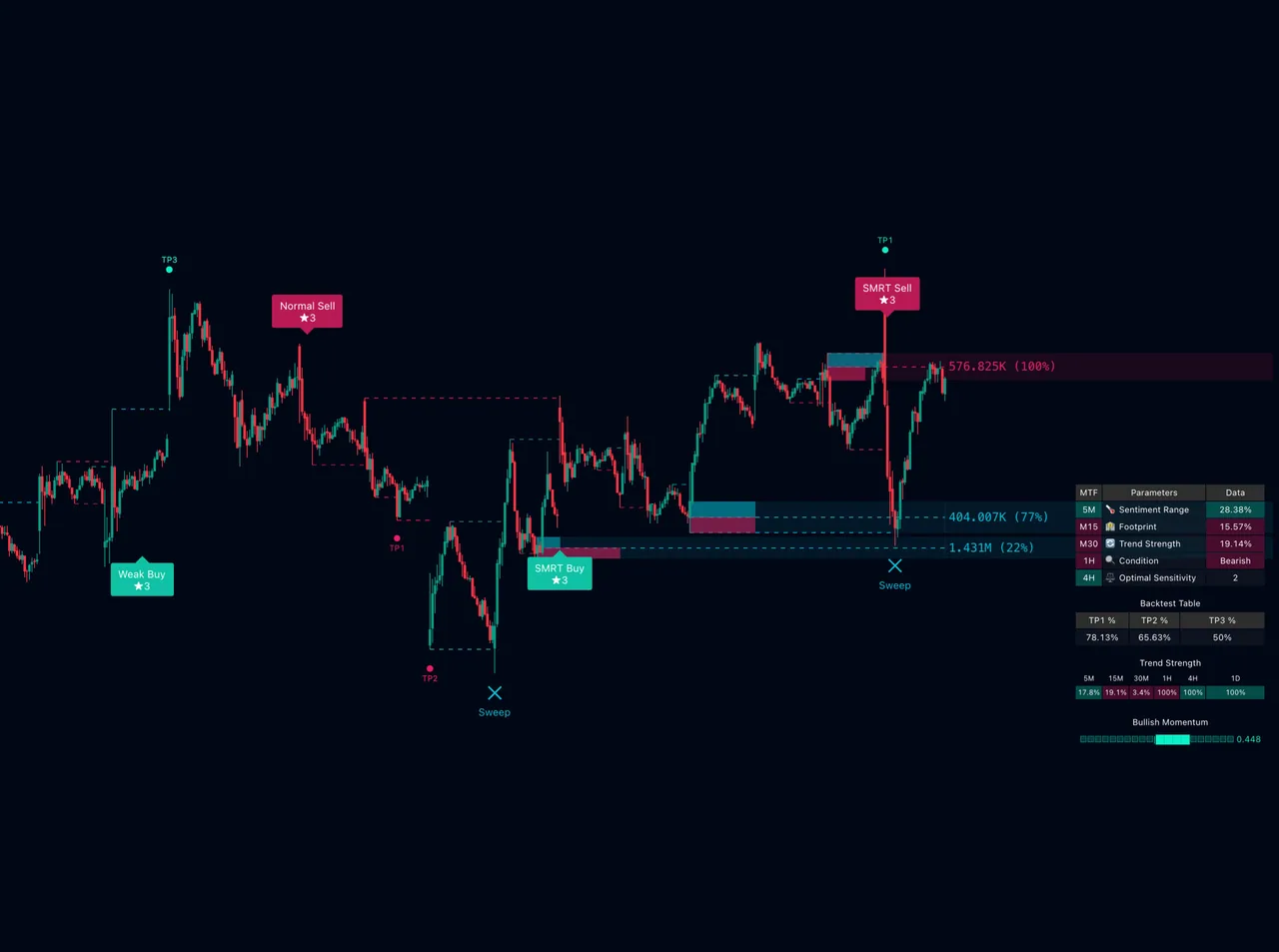
Pro V5 with entry, stop and targets marked
Check The Trend

Check Price Direction Without Switching Charts

One panel shows five-minute through daily trends. Compare them without opening a separate chart for each view.
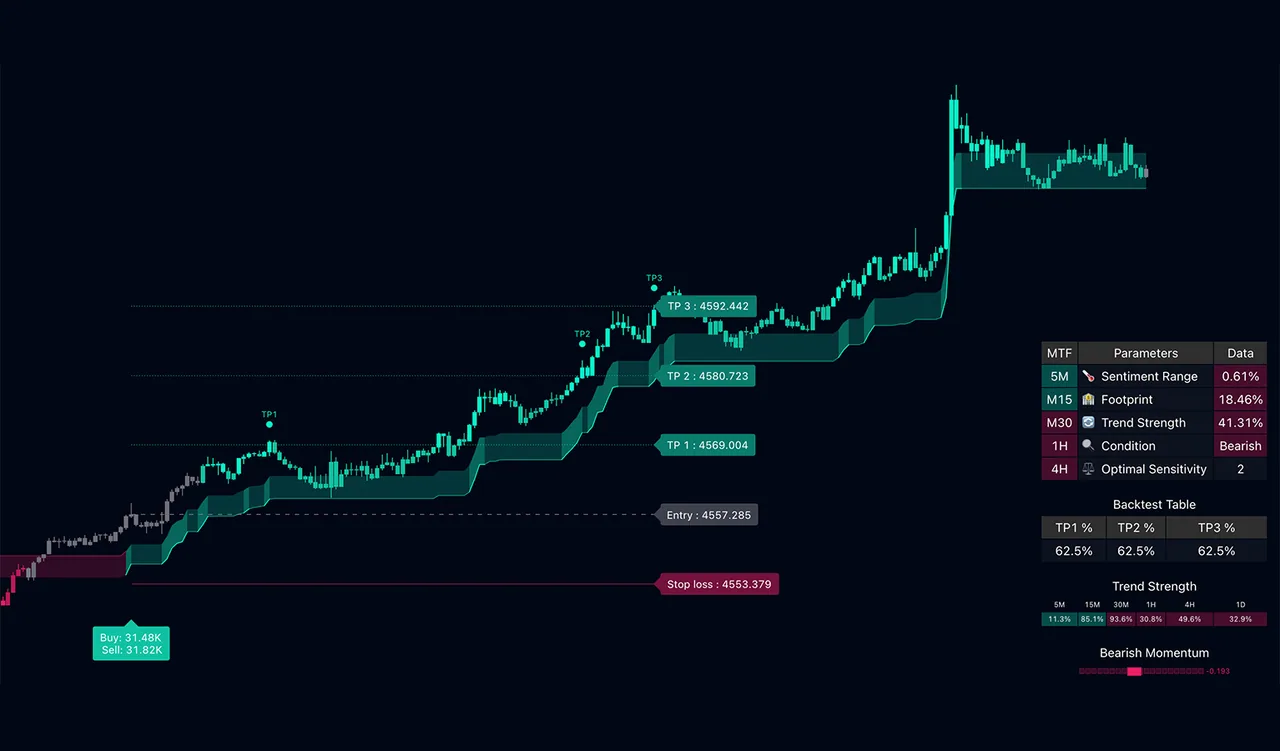
  • See whether short and long trends agree
  • Spot sideways moves with no clear trend
  • Spot moves past recent highs and lows
Add Trends To My Chart →
Entry, stop and target levels on a chart
Price Zones And Trading Volume

Find Where More Trading Takes Place

The Smart Money Toolkit shows trading volume at marked price levels. Use it to find busy areas and nearby zones to watch.
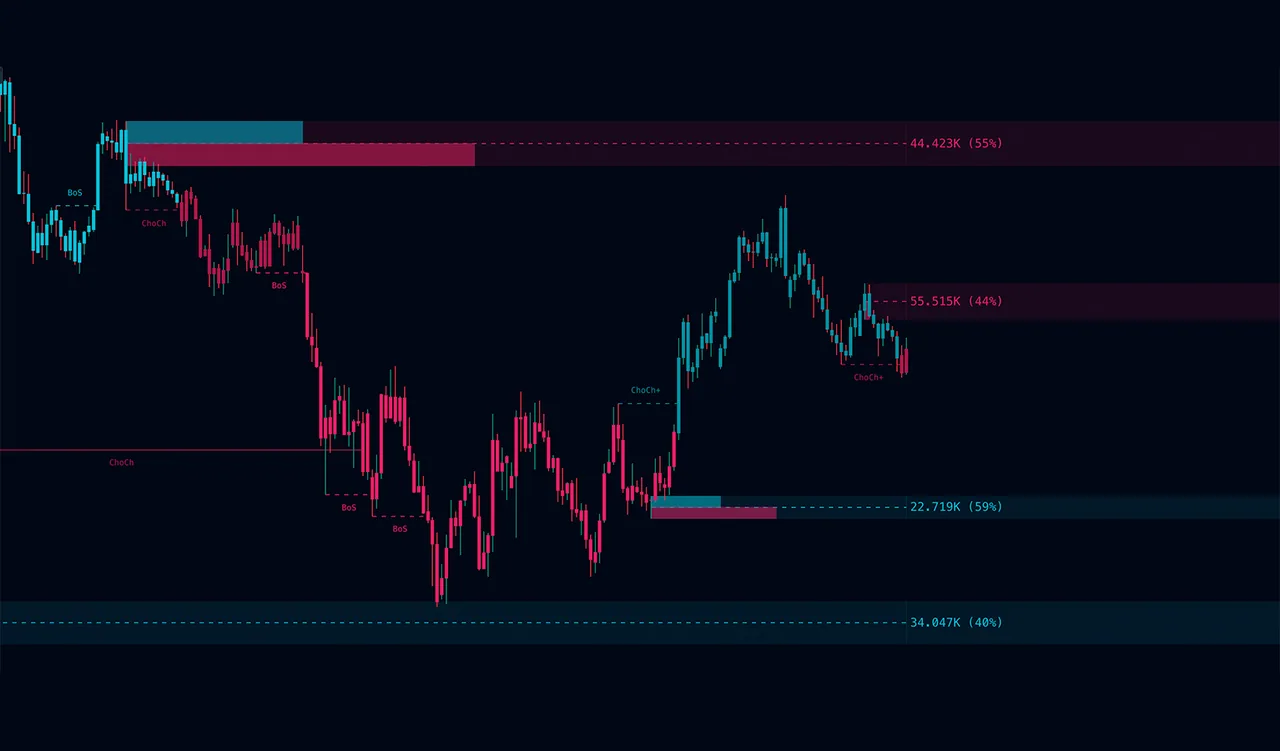
  • Compare trading volume across prices
  • See high and low price zones in color
  • Turn off layers to keep your chart simple
Get My Volume Tools →
Smart Money Toolkit levels

See SMRT Algo On A TradingView Chart

Take a quick look at the indicator features.

How Signals Are Filtered

Let Five Checks Filter Your Trade Ideas

Review price direction, strength, and trading activity before you act on a signal.

Step 01

Check Where Price Is Heading

The tool scans trends and nearby price zones on short and long chart views.

Step 02

Wait For Five Checks To Agree

Price speed, volume, swings, levels, and trend must agree. Volume means how much is traded.

Step 03

Review Past Setups On Your Chart

Once a chart bar closes, its marks stay in place. Look back to see how price moved after the setup.
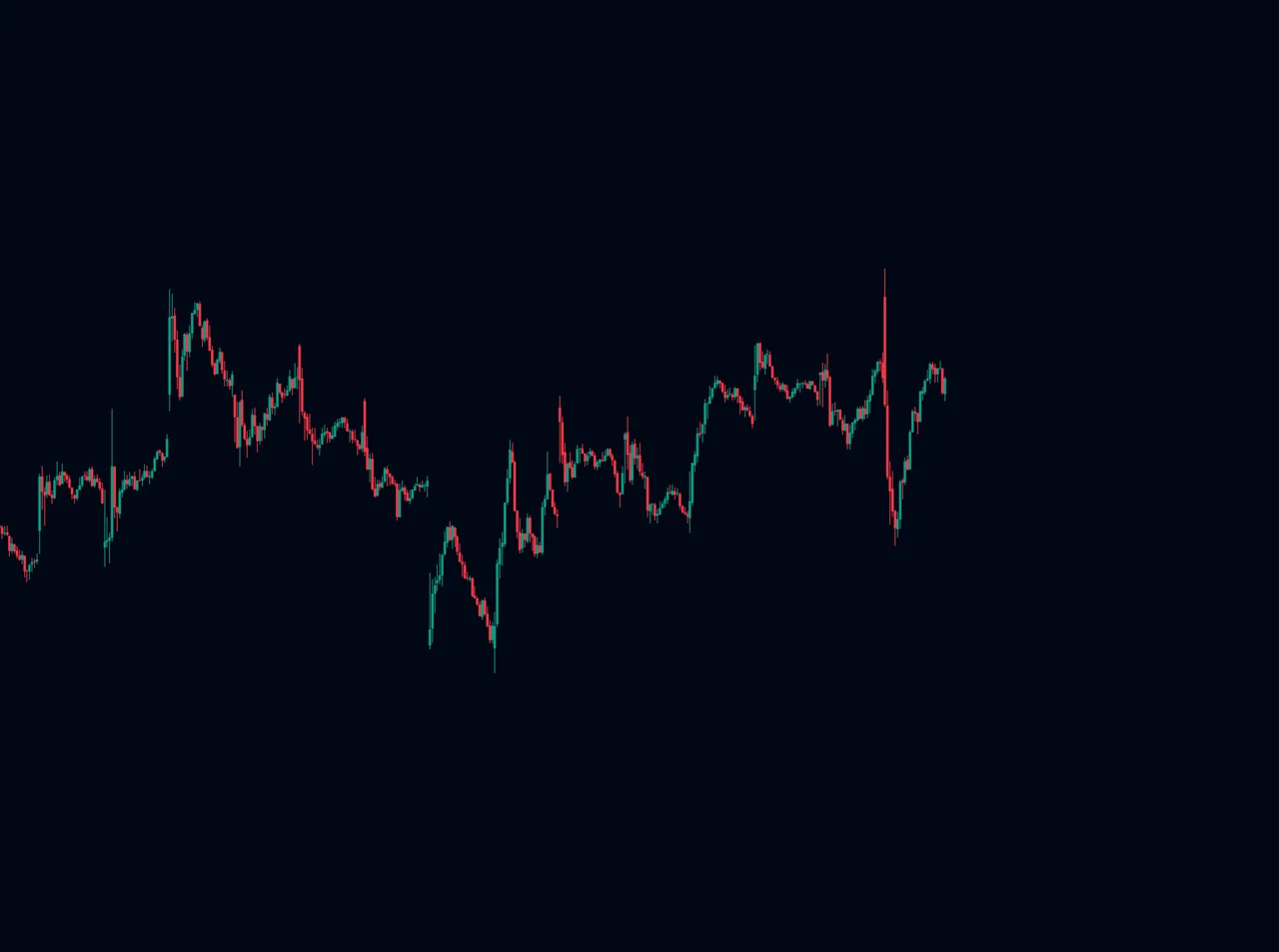
Skip The Manual Chart Drawing

Chart before SMRT Algo , noisy indicators Chart with SMRT Algo, levels marked
Without SMRT Algo With SMRT Algo
↔
Drag to compare

Get Trade Alerts. Spend Less Time Watching.

Set an alert for a buy or sell setup. Get a notice when its rules are met, then open your chart to review it.

Buy idea ★3 · 15-minute chart
Entry 1.0842 · Stop 1.0828
Targets 1.0856 · 1.0871 · 1.0889
09:32:04
Move past a recent high or low · 1-hour chart
Entry 64,210 · Stop 63,480
Targets 64,940 · 65,600 · 66,380
02:37:08
Sell idea ★2 · 5-minute chart
Entry 18,412 · Stop 18,438
Targets 18,386 · 18,361 · 18,330
15:45:13
No setup
The checks did not agree
—

Is SMRT Algo Right For You?

A Good Fit If

  • You are new to trading
  • You want help reading price moves
  • You want a guide and setup help

Not For You If

  • You want a bot to place trades for you
  • You want signals to copy without checking charts
  • You do not want to learn how the tools work
How It Works

Live On Your Chart In Three Steps

1

Use Your TradingView Account

Use your TradingView account. Check its indicator and alert limits for your chosen setup.

TradingViewYour account ✓
2

Get SMRT Algo

Pick a plan. Then add your TradingView username. That is the whole step.

@your_usernameConnected ✓
3

Open Your Chart

Open any chart. Click Indicators. Add SMRT Algo from Invite-Only Scripts.

Indicators › Invite-Only › SMRT Algo+ Add

Explore Trend, Volume, And Price Zone Indicators

Compare markets with the screener, find busy prices with volume tools, and check price direction with trend tools.

Choose Your Plan

Yearly
Most Popular
Full access for a year
$41.42/mo70% OFF Applied
$12.43/ mo*
$497 $149.10 for the first year; then $497/year
*Monthly equivalent, billed annually.
Full suite with priority support.
Choose Annual
  • All 14 Pro indicators
  • Pro V5 · Pro V4 · Pro V3 · V1 Algo
  • Smart Money Toolkit
  • SMRT Oscillator & Volume Profile
  • Multi-Asset Screener
  • SMRT MACD · Swing Algo · Scalper Strategy
  • Reversal Finder · Trend Pivot Oscillator
  • MTF Supply & Demand
  • Configurable chart and timeframe settings
  • No repaint
  • Members-only Discord
  • Annual Perks
  • One payment covers the full year
  • Priority support queue
Lifetime
Lifetime Deal
One payment, no renewals
$79570% OFF Applied
$238.50/ lifetime
One payment, never billed again
Full suite and future releases.
Select Lifetime
  • All 14 Pro indicators
  • Pro V5 · Pro V4 · Pro V3 · V1 Algo
  • Smart Money Toolkit
  • SMRT Oscillator & Volume Profile
  • Multi-Asset Screener
  • SMRT MACD · Swing Algo · Scalper Strategy
  • Reversal Finder · Trend Pivot Oscillator
  • MTF Supply & Demand
  • Configurable chart and timeframe settings
  • No repaint
  • Members-only Discord
  • Lifetime Perks
  • All future indicators included
  • Lifetime chat access
  • Beta access to new releases
  • No recurring billing ever
🔒 Secure Payment ↩ Cancel Anytime ⚡ Instant Access

Included With Every Plan:

  • 01Recommended Chart Setup
  • 02Step-By-Step Setup Guide
  • 03Guide To Setting Alerts
  • 04Guides To Trade Plans
  • 05Weekly Help Sessions
  • 06A Private Member Group
Help With Your Setup

Use the quick-start guide to add the tools and configure alerts. If you need help, contact support with your TradingView username and setup details.

Frequently Asked Questions

Can I use SMRT Algo if I am new to trading?
Yes. The setup guides show you how to add and use the tools. Learn what each chart mark means at your own pace, and ask support when you get stuck.
What is TradingView, and do I need it?
TradingView is the chart app our indicators run on. You need a TradingView account to use them. Add your username to your SMRT Algo account after checkout.
Do I have to use all the indicators at once?
No. Pick the tools for the task you want help with, such as reading trends or marking price levels. Add others as you learn.
Will the tools place trades for me?
You choose and place your own trades. The indicators show chart information and alerts for you to review.
How do I choose the right settings?
Start with the setup guide for your chosen indicator. It explains the settings. Ask support if you are unsure what to change.
Do I need a paid TradingView plan?
It depends on how many tools and alerts you want to use. Check TradingView’s plan limits before you choose. A paid TradingView plan costs extra.
Will the tools work on the market I want to trade?
Check your chosen indicator’s guide for the markets and chart types it supports. Share your planned setup with support if you need help checking.
Can I use the tools on my phone?
Yes. Open your charts in the TradingView mobile app.
Where can I get help with setup?
Contact support with your TradingView username and the step you need help with. You can also ask in the member group on Discord, a chat app.
How do I cancel my plan?
Turn off future payments in your account. You keep access through the time you paid for. Monthly and annual plans renew until canceled. Lifetime is a one-time payment.

Black Friday: get 70% Off SMRT Algo Indicators

Use code BLACKFRIDAY at checkout. Enter your email below to get our free Smart Money Cheatsheet.

70% off any plan
Free Smart Money Cheatsheet
Promotional Discount Form

By signing up, you agree to receive marketing emails from SMRT Algo, including offers, product updates, and educational content. You can unsubscribe at any time. View our Privacy Policy.